Caju on your phone

Put Caju on your home screen in under a minute

Caju runs in the browser, but it can have its own icon just like any other app. It is quick, it takes almost no space, and you do not need an app store.

Full screen

Opens without the browser bars, leaving more room for a child to tap.

One tap and it opens

The icon sits next to your other apps. Nobody has to type the address.

The same account

It is the same Caju, with the same profiles and everything you have set up. Nothing is lost.

iPhone and iPad

Add to Home Screen on iPhone

Five taps, in Safari.

The steps below are in Safari

Chrome on iPhone is very similar, only the menu sits elsewhere. What genuinely does not work is opening Caju inside Instagram, Facebook or WhatsApp: those apps use their own browser, which has no such option. Tap the three dots, choose “Open in Safari” and start there.
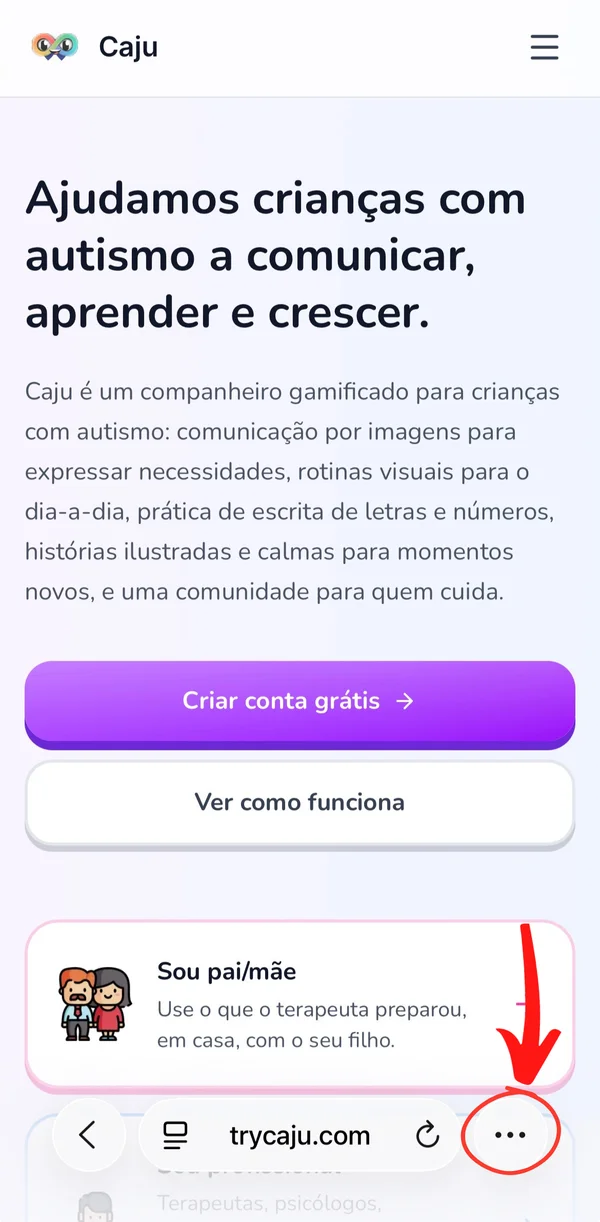
  1. Safari bar with the three dot button highlighted
    1

    Tap the three dots

    In the Safari bar at the bottom, to the right of the address.
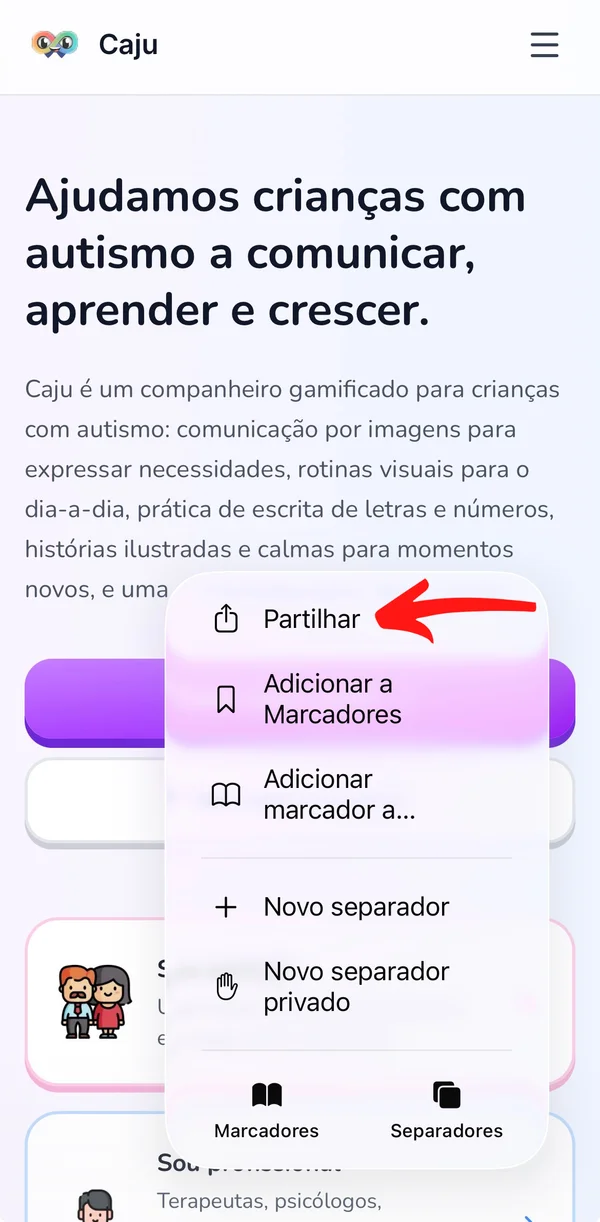
  2. Safari menu with the Share option highlighted
    2

    Choose “Share”

    It is the first option in the menu that opens.
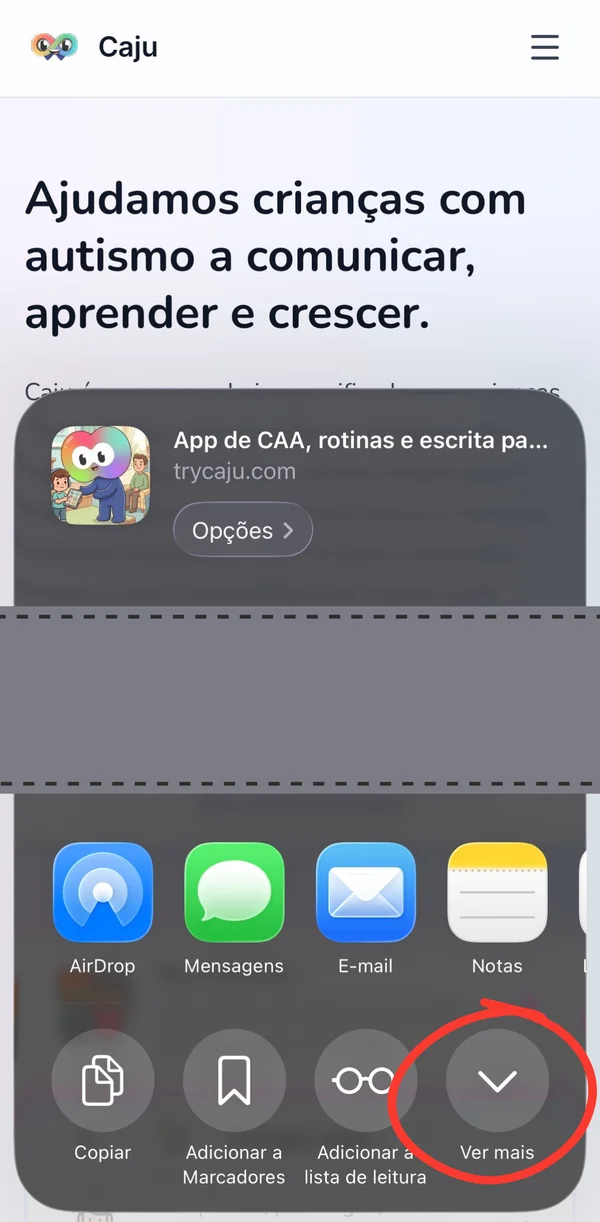
  3. iPhone share sheet with the More button highlighted
    3

    Tap “More”

    It opens the full list of actions, at the end of the share sheet.
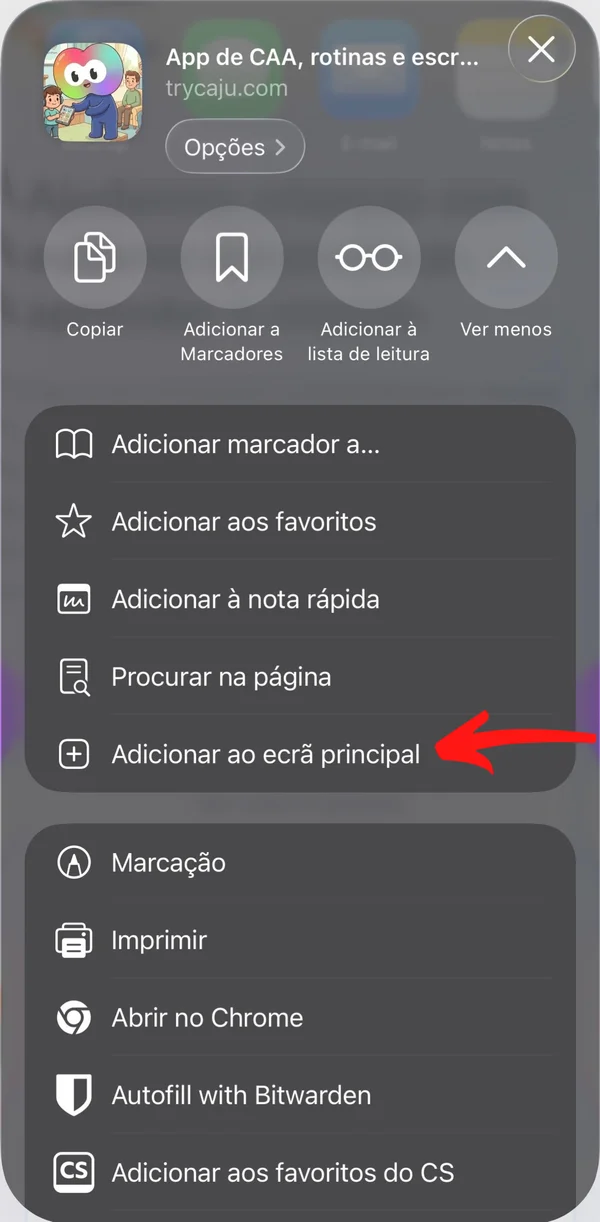
  4. Action list with the Add to Home Screen option highlighted
    4

    Choose “Add to Home Screen”

    It is in the list that just opened, with a plus sign beside it.
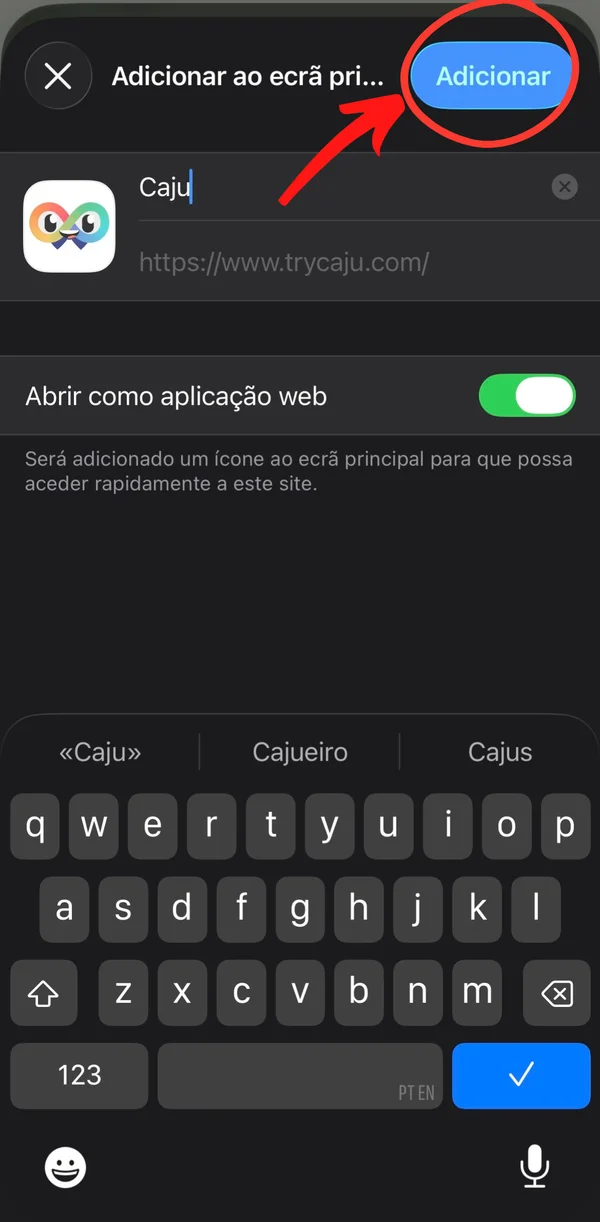
  5. Confirmation screen with the Caju name and icon
    5

    Tap “Add”

    You can keep the name Caju. Leave “Open as web app” on so it opens full screen.

That is it. From now on you open Caju from the icon, like any other app.

Android

Install the Android app

The app is in closed testing. Two steps, done on your Android phone.

Do this on your Android phone

It will not work on a computer: while the app is in closed testing it has no page on the web store, so the link returns an error. And use the same Google account you are signed in with on the phone's Play Store, because test access is tied to the account you join the group with.

  1. The Caju testing group page with the join button
    1

    Join the testing group

    Open the group and tap “Join group”. That is what grants access to the test.

    Join the group
  2. Opt-in page confirming you are a tester, with the link to Google Play
    2

    Accept and install

    Open the opt-in link, confirm you want to be a tester, then follow the link to Google Play to install.

    Open the opt-in link

That is it. Caju sits on your home screen as a Play Store app and picks up the test updates.

Would you rather skip the Play Store?
You can use Caju without installing anything from the Play Store. In Chrome, open the three dot menu and choose “Install app” or “Add to Home screen”. You get your own icon and it opens full screen.

Common questions

The ones that come up most often.

I cannot see “Add to Home Screen”
That usually means the page was opened inside another app. Links opened from Instagram, Facebook or WhatsApp use their own browser, which does not offer this option. Tap the three dots, choose “Open in Safari” and repeat the steps.
Is Caju in the app stores?
On iPhone and iPad, this is how you install it: the icon on your home screen. On Android there is a Play Store app, currently in closed testing, and the steps to join are above.
I joined the group but the app is not in the Play Store
It is usually just time. After you join the group, Google can take anywhere from a few minutes to a few hours to let you download it. If you have already waited, check two things: that the Play Store on your phone is on the same Google account you joined the group with, and that the account is registered in one of the countries where the test is open. The test is not available everywhere yet, and the Play Store goes by the country on the account, not by where you are.
Does this take up space on my phone?
Very little. What is stored is the icon and the essentials that let Caju open quickly.
Do I need an account to install it?
No. You can add the icon first and create an account later, or sign in with the account you already have.
Do I lose anything by installing it?
No. It is the same Caju and the same account. Your profiles, routines and boards are all still there.
What if I want to remove it later?
Press and hold the icon and choose to remove it, like any other app. Your account and your work stay untouched.
Can I install it on a shared tablet?
Yes. The steps are the same on iPad and on Android tablets, and you can switch profile inside Caju whenever a different child uses it.

No account yet?

Create your account, then add the icon to your home screen. It takes under a minute.

How to install Caju on iPhone and Android | Caju